Build App in a Docker Container – Getting Started
Today in this article, we will see how to Build App in a Docker Container image for the given application. We will create a Dockerfile then built an image and then start the container and also visualize the running app.
Updated October 2026: a port-publishing and troubleshooting section, a build caching and .dockerignore section, an FAQ and corrected build commands.
Today in this article, we will cover below aspects,
You could use any sample of your choice for this exercise.
I am using an ASP.NET MVC application with a simple “Hello World” screen.
Below are the high-level steps, which we will be performing in this tutorial.
- Get the Application and set up prerequisites
- Build the app’s container image
- Start the app container
- Visualize the running App
- Push the image to the Docker registry
Prerequisites
This tutorial assumes you have a current version of Docker installed on your machine, such as Docker Desktop or Docker Engine 29.x. Desktop releases arrive every couple of weeks, so check docker version rather than matching a number from a tutorial.
If not then please install the Docker version as support for your OS.
For Windows/Mac
- https://docs.docker.com/desktop/
- Login to your docker project account
You can use any of your Angular, Java, Python, or node js application as required.
Getting started
Step 1 – Get the app
Before we can run the application, You need the application on your machine. If you already have a project using any language then use it.
For simplicity, we will get the application source code already available from GitHub onto our machine.
Alternatively, you can get started using the below repo,
git clone https://github.com/thecodebuzz
Step 2- Build the app’s container image
This is the first step to getting your application running in Docker.
In this step, you need to add Dockerfile to your project. below is a sample docker file.
FROM mcr.microsoft.com/dotnet/aspnet:5.0

WORKDIR /thecodebuzzapp

COPY bin/Release/net5.0/publish/. /app/

EXPOSE 80

CMD ["dotnet","TheCodeBuzzApp.dll"]
Note : Dockerfile has no file extension. Please make sure you don’t use any extension accidentally to avoid any issue at a later stage.
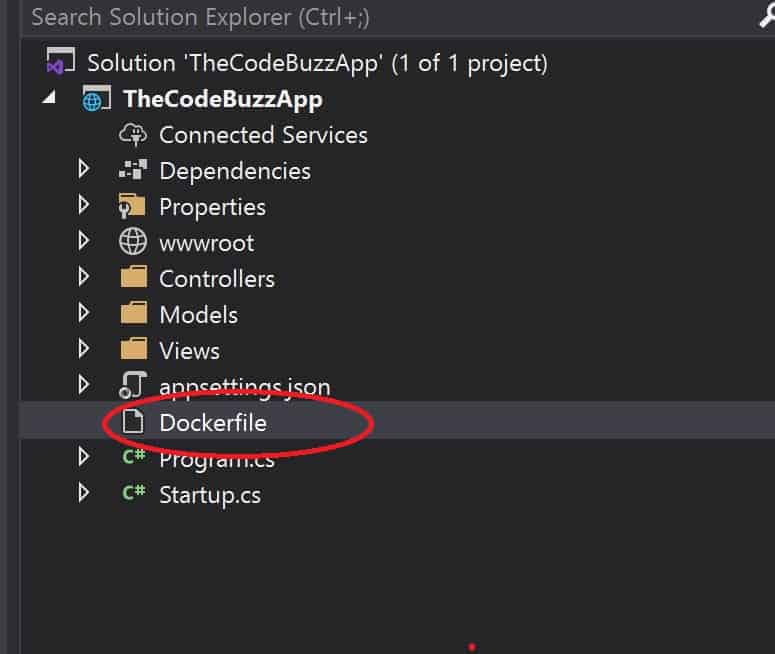
Below is how I have kept the Dockerfile in the project folder
Let’s build the image. Use a lowercase name, because Docker rejects uppercase repository names, and keep the trailing dot, which tells Docker the build context is the current folder (for example docker build –tag thecodebuzzapp .).
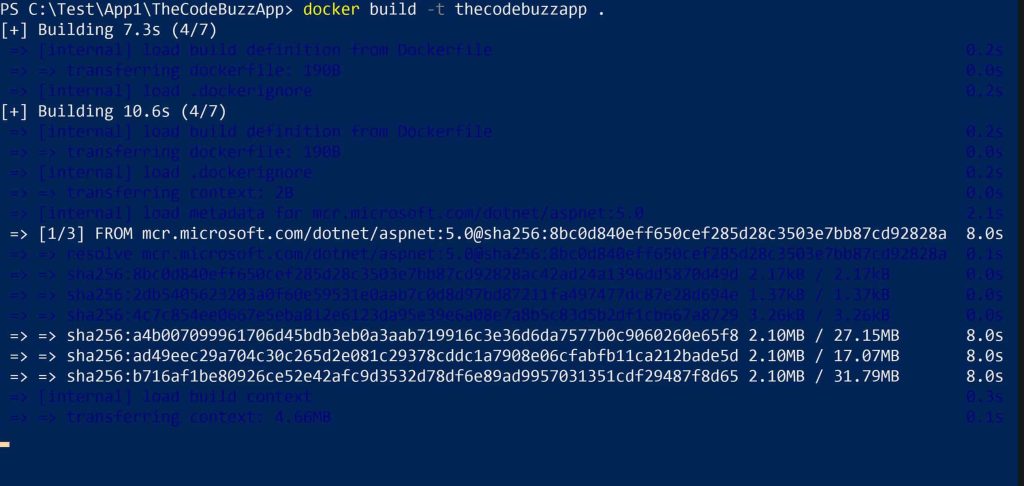
docker build -t TheCodeBuzzApp .
Once you execute the build commands Container will build the image
Step 3 – Start an app container
Let’s now start the container using the docker run command and specify the name of the image we just created in the above steps.
docker run -dp 80:80 thecodebuzzapp

Publish the port with -p when you run the container (for example -p 80:80, host port first), then open the browser at localhost and that host port as below,
http://localhost/80
Why can't I open my containerized app in the browser? Publishing ports and other common errors
Usually the port was never published, or the app is listening on the wrong address or port inside the container. Publish the port with -p, make the app listen on 0.0.0.0, and check that the container port matches what the app really uses.
Is the port published and does it match the app?
docker run -p HOST:CONTAINER publishes a container port on your machine. EXPOSE in a Dockerfile only documents the port the app listens on and publishes nothing. Engine 28 also changed default bridge networking, so unpublished ports are not reachable from the local network under some host firewall setups. Always use -p.
The ASP.NET app must also bind to 0.0.0.0 inside the container, not 127.0.0.1. The right-hand side of -p must be the port the app actually reports in its startup log, whatever your Dockerfile says.
In plain English: Think of the container as a house with its own private phone line. "localhost" inside it means the house itself, so a service listening only there can't take outside calls. Publishing a port is like adding a forwarding number from your street address to one room in that house.
What other mistakes cause the same symptom?
These four failures account for most "it won't start" reports:
- Uppercase image name: Docker rejects uppercase repository names. Tag the image in lowercase.
- Wrong Dockerfile name: A file saved as
Dockerfile.txtisn't found. Remove the extension. - Host port in use: Another process already holds the left-hand port. Pick a different host port, such as 8080.
- Container exits immediately: When the main process ends, the container stops. Often the app crashed on startup or the DLL name in
CMDis wrong.
How do I find out what's wrong?
Work through these in order:
- docker ps: Shows running containers and their port mappings. Add
-ato see stopped ones and their exit status. - docker logs: Prints the app's output, including the address and port it bound to and any startup exception.
- docker exec: Runs a command inside a running container, so you can inspect files or test the app from within.
If docker image ls looks different from older tutorials, that's expected. Since Engine 29 it shows a collapsed, tree-style view by default.
What does the trailing dot in docker build mean?
The dot is the build context, the folder Docker sends to the builder. It's where Docker looks for the Dockerfile and for the files that COPY refers to. Run the command from the wrong directory and you'll see "file not found" errors even though the Dockerfile exists.
Push the image to the Docker registry
Now let’s use the below commands to push the image to the docker registry ,
docker push YOUR-USER-NAME/Your-Docker-Name
If you don’t give a tag, Docker uses a tag called ‘latest’. Prefix the image name with your Docker Hub username (username/name) before you push, and prefer an explicit version tag for anything you deploy.
Example
docker push firstthecodebuzz/thecodebuzzapp
References:
Do you have any comments or ideas or any better suggestions to share?
Please sound off your comments below.
Happy Coding !!
Summary
Today in this article, we learned the basics of building a container image for the given application. We created Dockerfile then built an image and then started the container and visualize the running app.
Next, we’re going to make a modification to our app and learn how to update our running application with a new image. Along the way, we’ll learn a few other useful commands.
Please bookmark this page and share it with your friends. Please Subscribe to the blog to receive notifications on freshly published (2026) best practices and guidelines for software design and development.
Frequently asked questions
What is the difference between a Docker image and a container?
An image is a read-only template made of layers that holds the app and its dependencies. A container is a running (or stopped) instance created from an image. You can start many containers from one image.
When you run docker build, you create the image. When you run docker run, Docker adds a thin writable layer on top and starts your app inside it.
What does the dot at the end of docker build mean?
The dot is the build context, the folder Docker sends to the builder. It is where Docker looks for the Dockerfile and the files that COPY can use. Use -f if the Dockerfile lives elsewhere.
For example, docker build -f docker/Dockerfile -t thecodebuzzapp . reads the Dockerfile from the docker folder but still uses the current folder as the context. A .dockerignore file in the context keeps unneeded files out of the build.
Why does EXPOSE in a Dockerfile not make the port reachable?
EXPOSE only documents the port the container listens on. To reach it from the host you must publish it with docker run -p HOST:CONTAINER, for example -p 8080:80. The app must also listen on 0.0.0.0, not 127.0.0.1.
If the app binds only to the container’s loopback address, the published port will connect but nothing will answer. Recent Docker Engine versions also tightened default bridge networking, so don’t rely on an unpublished port being reachable from other machines.
How do I push my Docker image to Docker Hub?
Log in with docker login, tag or build the image as <username>/<name> in lowercase, then run docker push with that name. The username prefix tells Docker where on Docker Hub to store it. Uppercase repository names are rejected.
If you already built the image under a different name, add a second tag with docker tag thecodebuzzapp YOUR-USER-NAME/thecodebuzzapp and push that one. This is also why docker build -t TheCodeBuzzApp . fails: the tag must be lowercase.